Follow the steps below to navigate to the app Photos screen, including viewing all Photos, Albums, Favorites, and Memories in one place!
JUMP TO: All Photos | Albums | Favorites | Memories | Order Products | Share | Save an Image | Save an Album | Delete Images | Delete Album | Upload Photos
All Photos
iOS Device Steps
- Tap 'Photos'.
- Default view is set to 'All Photos'.
- View only previously uploaded photos.
- Images are sorted by date.
- Tap any photos that have been uploaded for more options.
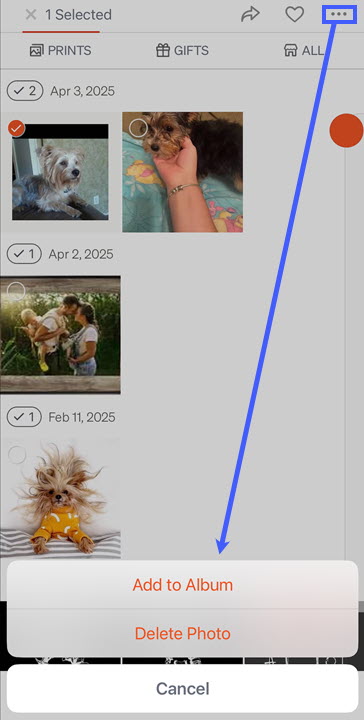
- Tap the three horizontal dots at the top right of the screen to 'Add to Album' or 'Delete Photo'.
- Photos deleted on the app will be added to the trash bin and permanently deleted after 30 days.
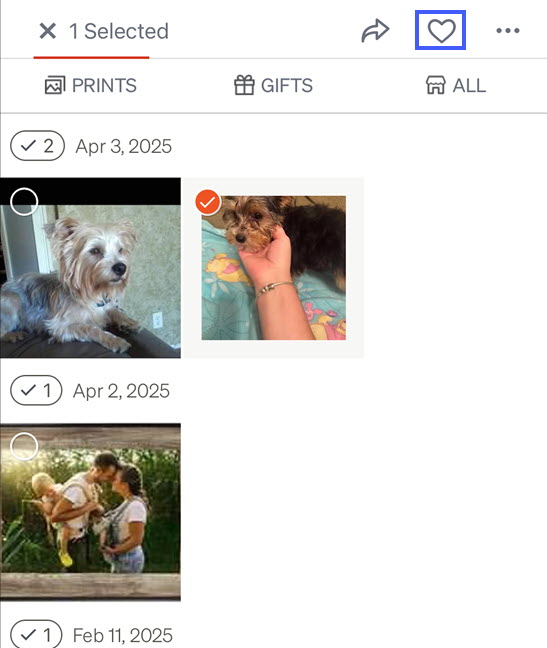
- Tap the image and then Tap the heart icon at the top of the screen to favorite a photo.
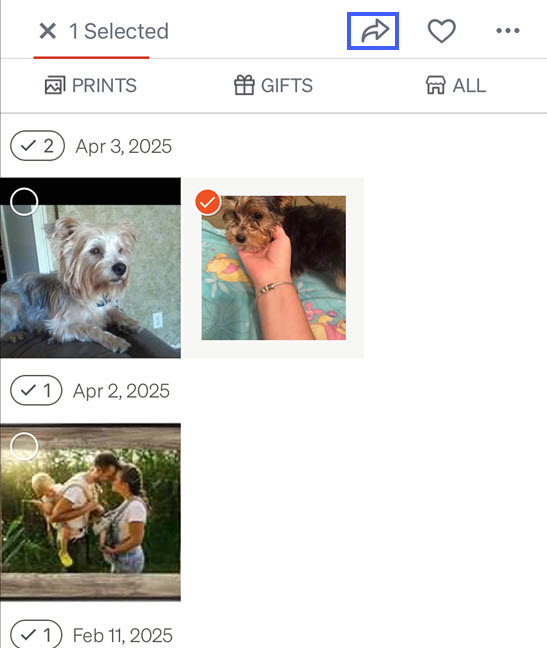
- Tap the image and then Tap the right arrow to download or share photos.
Android Device Steps
- Tap 'Photos'.
- Default view is set to all photos.
- View only previously uploaded photos.
- Images are sorted by date.
- Tap any photos that have been uploaded for more options.
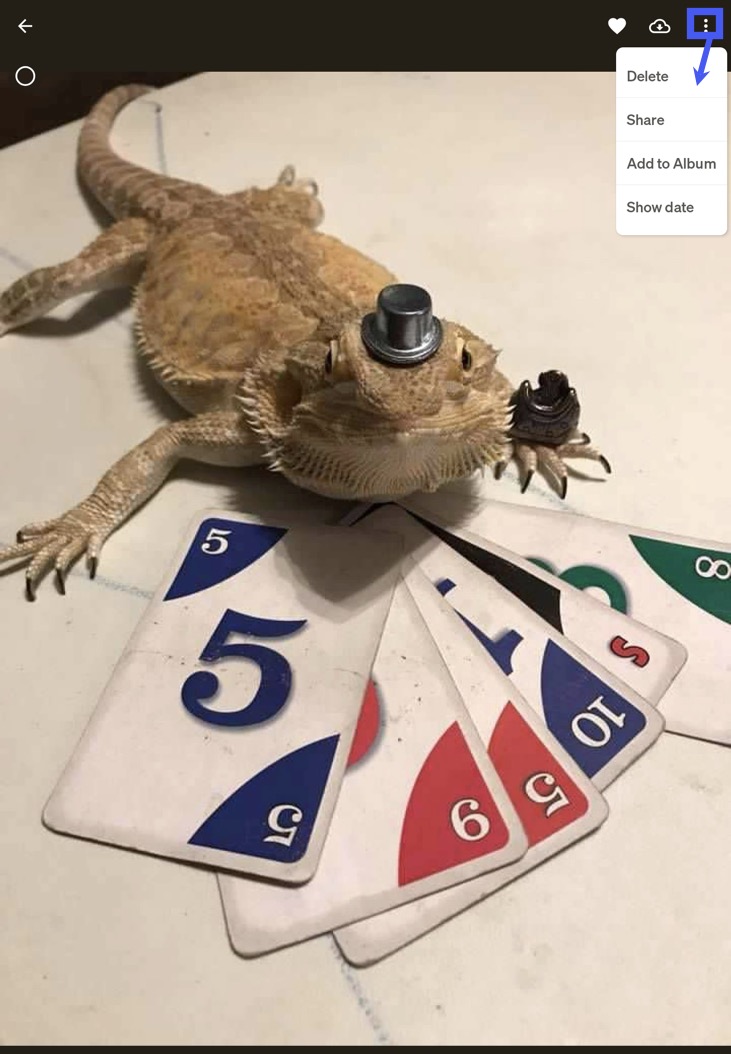
- Tap the three vertical dots at the top right of the screen to Delete, Share, Add to Album, or Show Date.
- Photos deleted on the app will be added to the trash bin and permanently deleted after 30 days.
- Select the images and Tap the heart icon at the top of the screen to favorite photos.
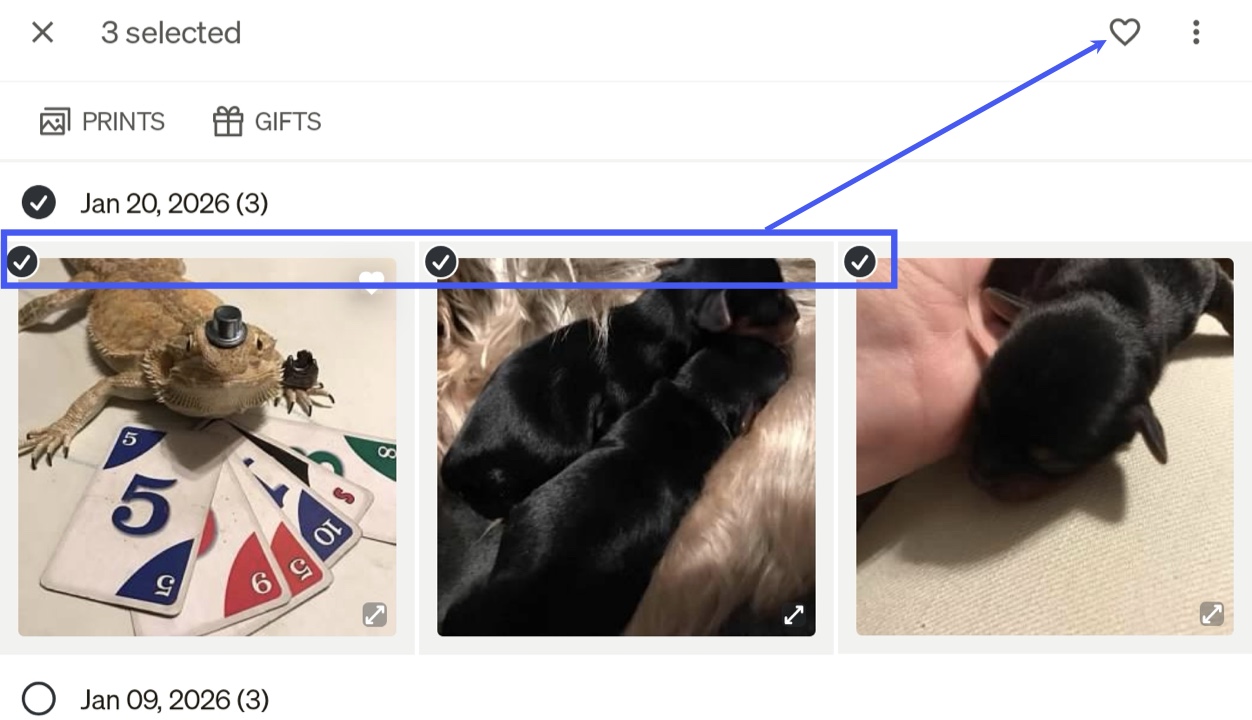
- Tap the image and Tap the Cloud icon to download the photo.

Albums
iOS Device Steps
- Tap 'Photos'.
- Tap 'Albums'.
- Browse Albums 'Shared with Me,' 'My Albums,' and 'Lifetouch Albums.'
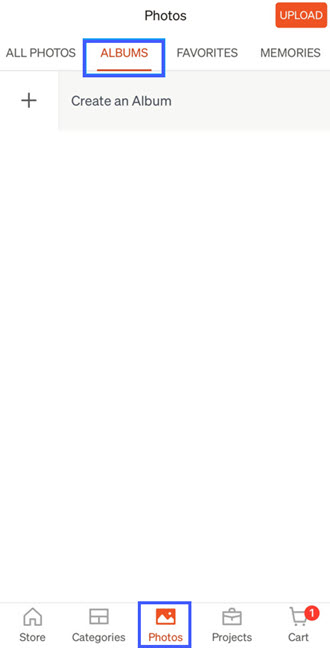
- Tap '+' or 'Create an Album' to open the 'Create an Album' prompt.
- Enter a name for the new Album and Tap 'Create'.
- Tap the desired Album for additional options such as Add Photos, Print All, or Share.
- Tap the three horizontal dots in the upper right corner to open album options.
- Sharing Options
- Add Photos
- Print All Photos
- Rename Album
- Delete Album Only
- This options will only delete photos from the Album and leave photos in 'All Photos'.
- Delete Album and Photos
- This will delete photos from the Album and the Timeline.
- Photos deleted on the app will be added to the trash bin and permanently deleted after 30 days.
- Tap the left arrow at the top left of the screen to return to Albums.
Android Device Steps
- Tap 'Photos'.
- Tap 'Albums'.
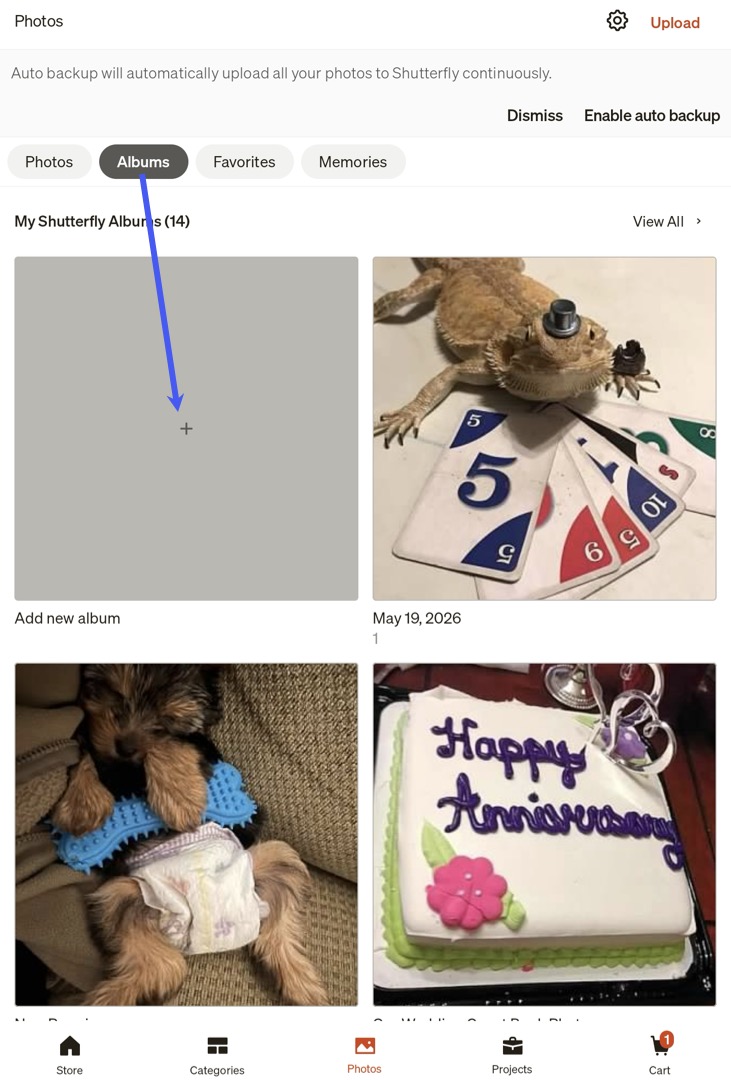
- Browse Albums by 'Albums on Device', 'Shared with Me on Shutterfly', 'My Shutterfly Albums', and 'Lifetouch Albums.'
- Tap '+' or 'Add new Album'.
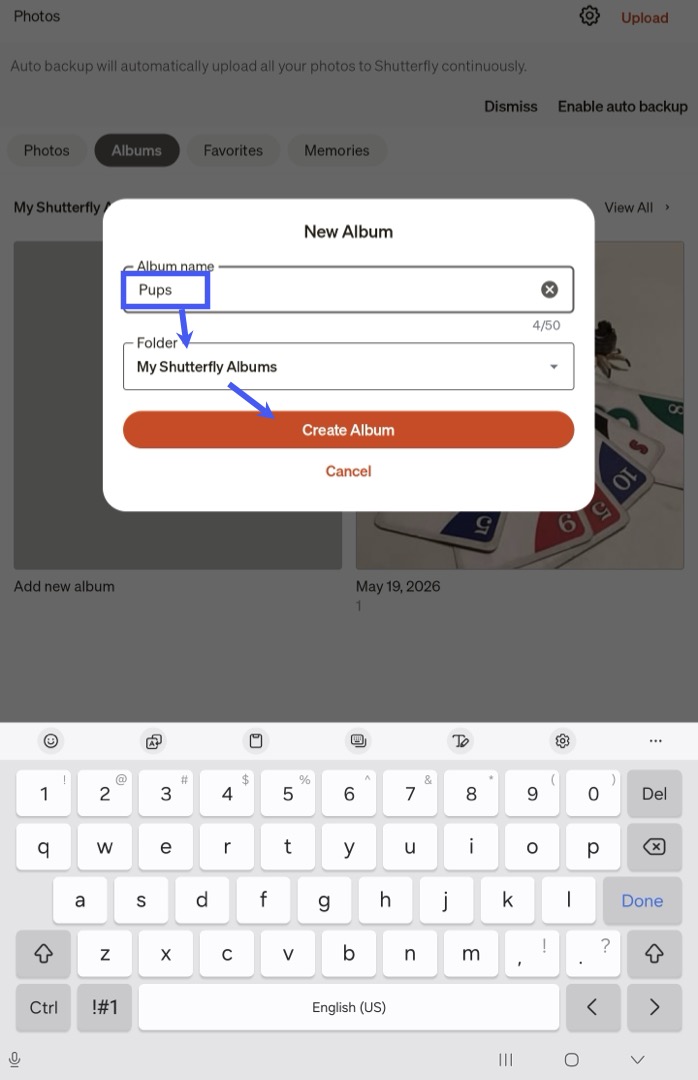
- Enter a name for the new Album, Select a Folder to add it to, and Tap 'Create Album'.
- Tap 'Add Photos', Select Photos, and Tap 'Add' .
- Click the tablet icon to add Photos from the device and Click the Shutterfly icon to add photos from Shutterfly.
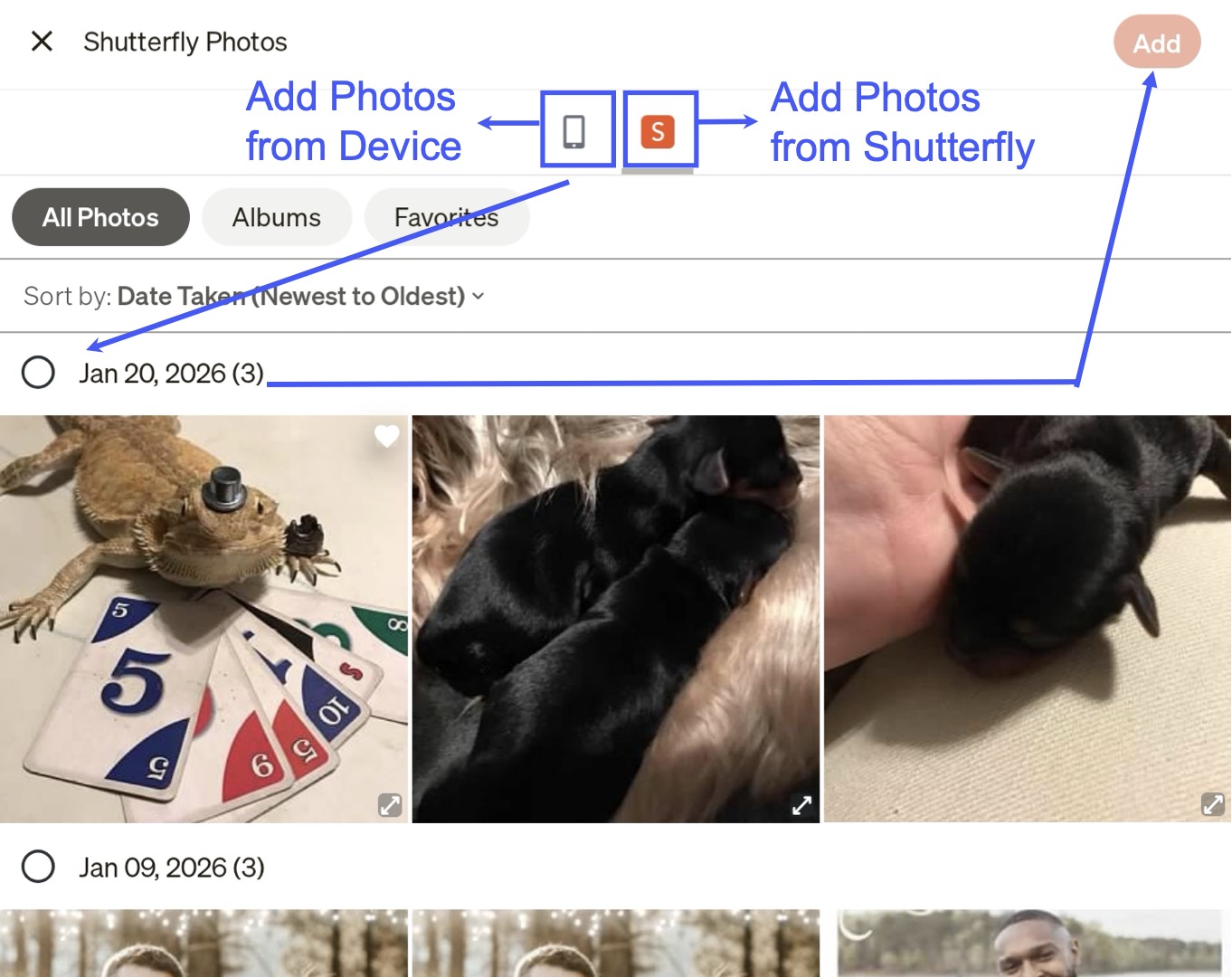
- Tap the three horizontal dots in the upper right corner to open album options.
- Rename Album
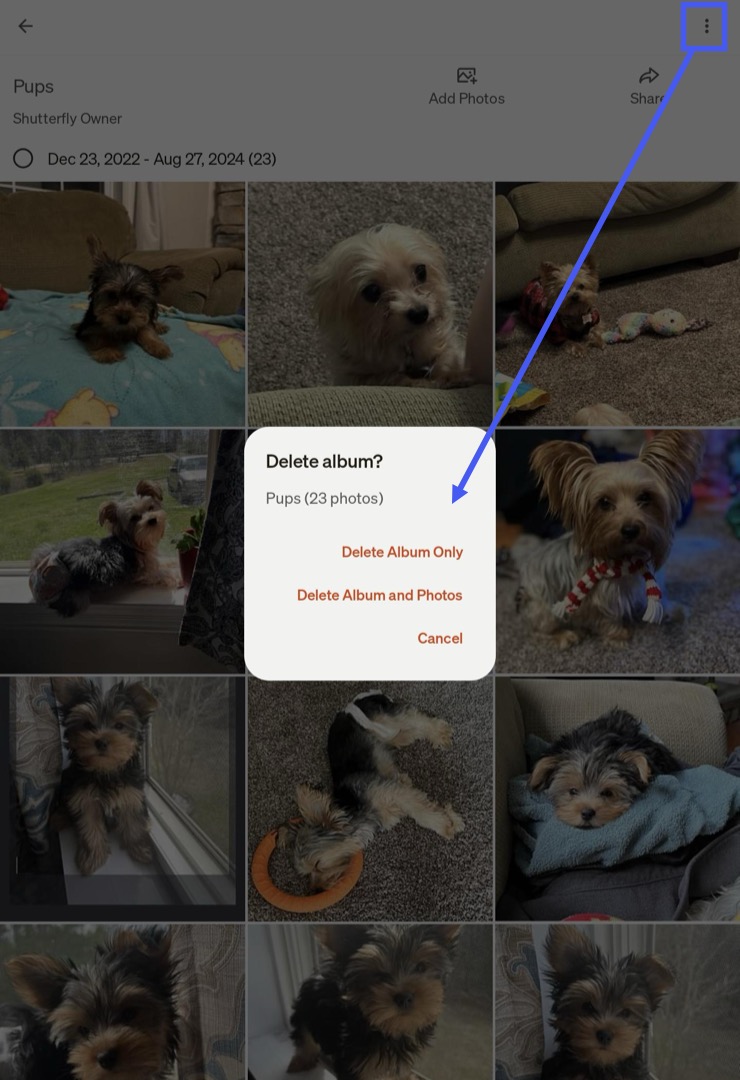
- Delete Album
- Once selected, it provides the options to Delete Album Only, Delete Albums and Photos, and Cancel.
- Delete Album Only will only delete photos from the Album, but the photos will remain on the Timeline.
- Delete Album and Photos will delete photos from the Album and the Timeline.
- Photos deleted on the app will be added to the trash bin and permanently deleted after 30 days.
- Tap the left arrow at the top left of the screen to return to Albums.
Favorites
iOS & Android Device Steps
- Tap 'Photos'.
- Tap 'Favorites'.
- View all favorited photos.
- Tap any photo for more options
- Tap the Heart icon to remove the Favorite tag.
Memories
iOS & Android Steps
- Tap 'Photos'.
- Tap 'Memories'.
- View photos as a slideshow.
- Tap on 'More From This Day' to go back to the specific date the photo was taken within the Timeline.
- Only available for iOS devices.
Order Products
iOS Device Steps
- Tap 'Photos'.
- Tap desired photos.
- Tap Prints, Books, Gifts, or All at the top of the screen to select items to order.
- Android only has the options to select Prints or Gifts.
Android Device Steps
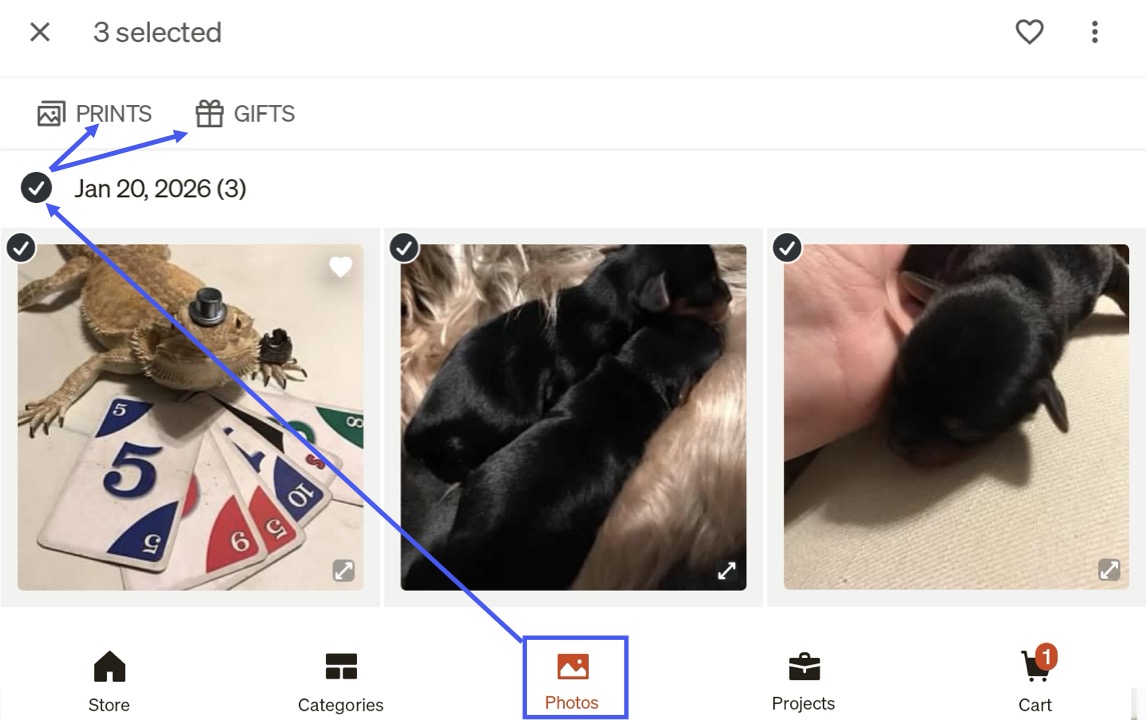
- Tap 'Photos'.
- Select a group of photos by date and Click either Prints or Gifts at the top of the screen.
Share
iOS Device Steps
- Tap 'Photos'.
- Tap 'All Photos', 'Albums', or 'Favorites'.
- Tap desired photo or Album.
- Tap the arrow icon to open the device's send options.
- Tap the desired option.
Android Device Steps
- Tap 'Photos'.
- Tap either 'Photos', 'Albums', or 'Favorites'.
- Tap the desired image, Tap the three vertical dots, and Tap 'Share'.
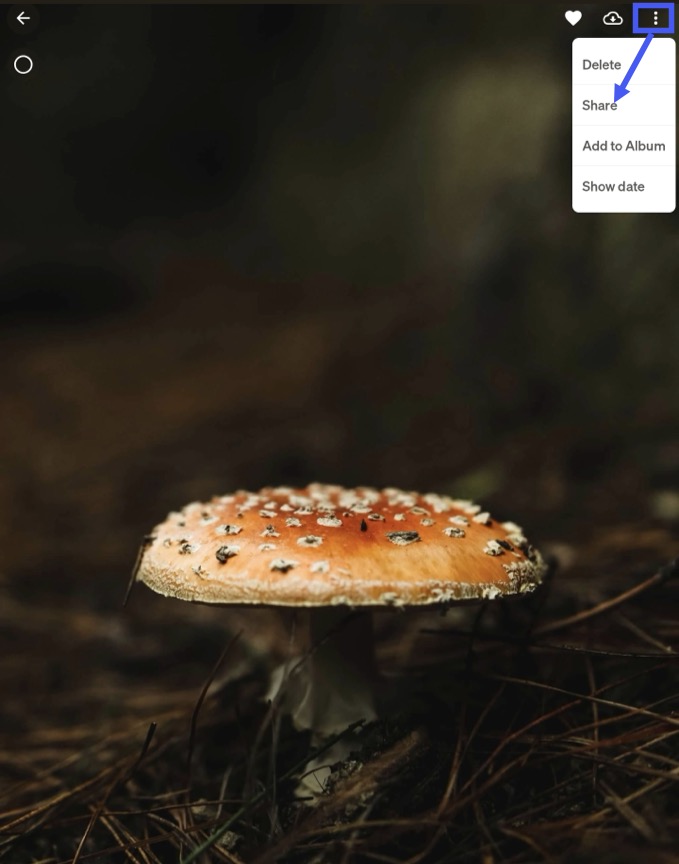
- Select how to share the photo.
Save an Image
iOS Device Steps
- Tap 'Photos'.
- Tap 'All Photos' or 'Favorites'.
- Tap the arrow icon to open the device send options.
- Tap 'Save Image'.
Android Device Steps
- Tap 'Photos'.
- Tap 'Photos' or 'Favorites'.
- Tap the image.
- Tap the cloud icon in the top right of the screen.

Save an Album
iOS Device Steps
- Tap 'Albums'.
- Tap the desire Album.
- Tap the arrow icon to open the device's send options.
- Tap 'Copy Link' to share the entire Album.
- Share the link to share the group of photos.
Android Device Steps
- Tap 'Albums'.
- Tap the desire Album.
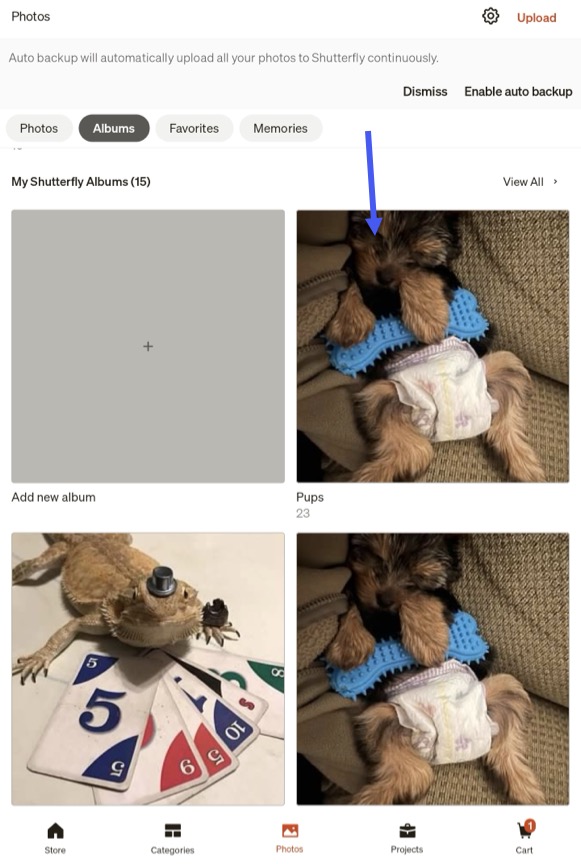
- Tap 'Share' to open the device's send options.

- Select how to share the Album.
Delete Images
- Photos deleted on the app will be added to the trash bin and permanently deleted after 30 days.
iOS Device Steps
- Tap 'Photos'.
- Tap 'All Photos' or 'Favorites'.
- Tap desired photo.
- Tap the three horizontal dots in the upper right corner.
- Tap 'Delete Photos'.
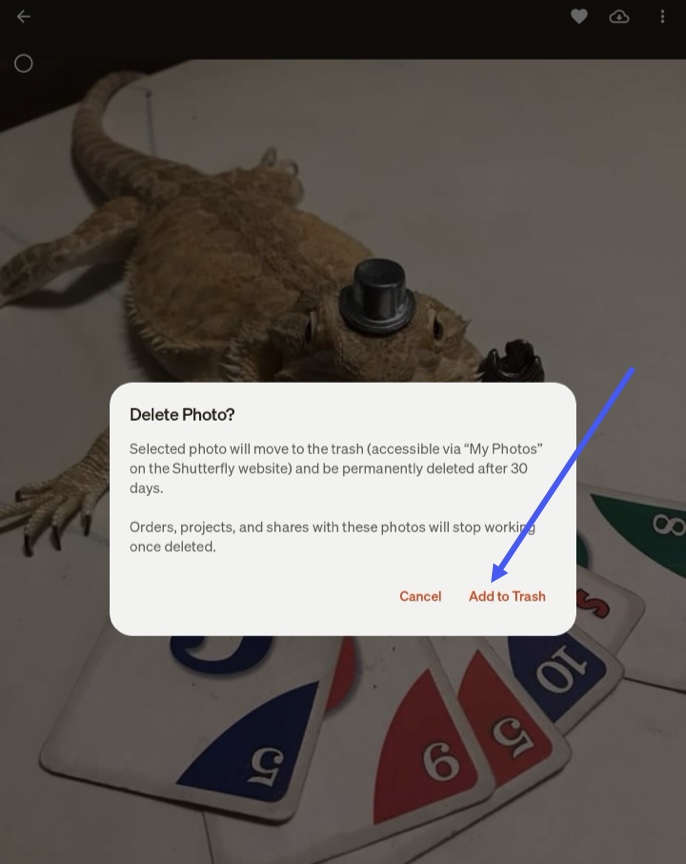
- Tap 'Add to Trash' to send the photos to the trash bin or Tap 'Cancel' to return to photos.
- Add to Trash moves the photos to the trash bin where the images will remain for 30 days and then be permanently deleted.
Android Device Steps
- Tap 'Photos'.
- Tap 'Photos' or 'Favorites'.
- Tap the desired photo.
- Tap the three vertical dots in the top right corner and Tap 'Delete'.
- Tap 'Add to Trash' to send the photos to the trash bin or Tap 'Cancel' to return to photos.
- Add to Trash moves the photos to the trash bin where the images will remain for 30 days and then be permanently deleted.
Delete Album
iOS Device Steps
- Tap 'Photos' and Tap 'Albums'.
- Tap the desired Album.
- Tap the three horizontal dots in the upper right corner.
- Tap 'Delete Album Only' (photos remain in the account timeline) or Tap 'Delete Album and Photos' (send photos to the trash bin and will be automatically be deleted after 30 days).
- Tap 'Add To Trash' to send the images to the trash bin or Tap 'Cancel' to return to photos.
- This moves photos to the trash bin where the images will remain for 30 days and then be permanently deleted.
Android Device Steps
- Tap 'Photos' and Tap 'Albums'.
- Tap the desired Album.
- Tap the three vertical dots in the upper right corner.
- Tap 'Delete Album'

- Tap either 'Delete Album Only', 'Delete Album and Photos', or 'Cancel'.
- Delete Album only will leave photos in the account Timeline.
- Delete Album and Photos will send photos to the trash bin and will be automatically be deleted after 30 days.
Upload Photos
iOS Device Steps
- Tap 'Photos'.
- Tap 'Upload' in the upper right corner of the screen.
- Select the iPhone album that contains the desired photos to upload.
- Photos already uploaded to Shutterfly will be marked with an 'S' on the lower right corner of the picture.
- Tap the thumbnail of the desired photos.
- Scroll by swiping up and down on the screen to view more photos.
- Tap 'Upload' when all desired photos are selected.
- Select 'Start Uploading' to add the Photos to the timeline or Tap 'Add to Album' to add photos to an Album (new or existing Album).
- When a photo has finished uploading, it will be marked with an 'S'.
- If the Shutterfly app is closed while an upload is in progress, the app will continue to upload in the background for several minutes and then pause.
- If the upload does not complete, it will be paused and will automatically resume the next time the app is opened.
Android Device Steps
- Tap 'Photos'.
- Tap 'Upload' in the upper right corner of the screen.
- Select desired photos and CLick either Upload to Timeline or Upload and add to Album.
- If selecting Upload and add to Album, Select the desired Album to upload the photos to.
- If the Shutterfly app is closed while an upload is in progress, the app will continue to upload in the background for several minutes and then pause.
- If the upload does not complete, it will be paused and will automatically resume the next time the app is opened.


